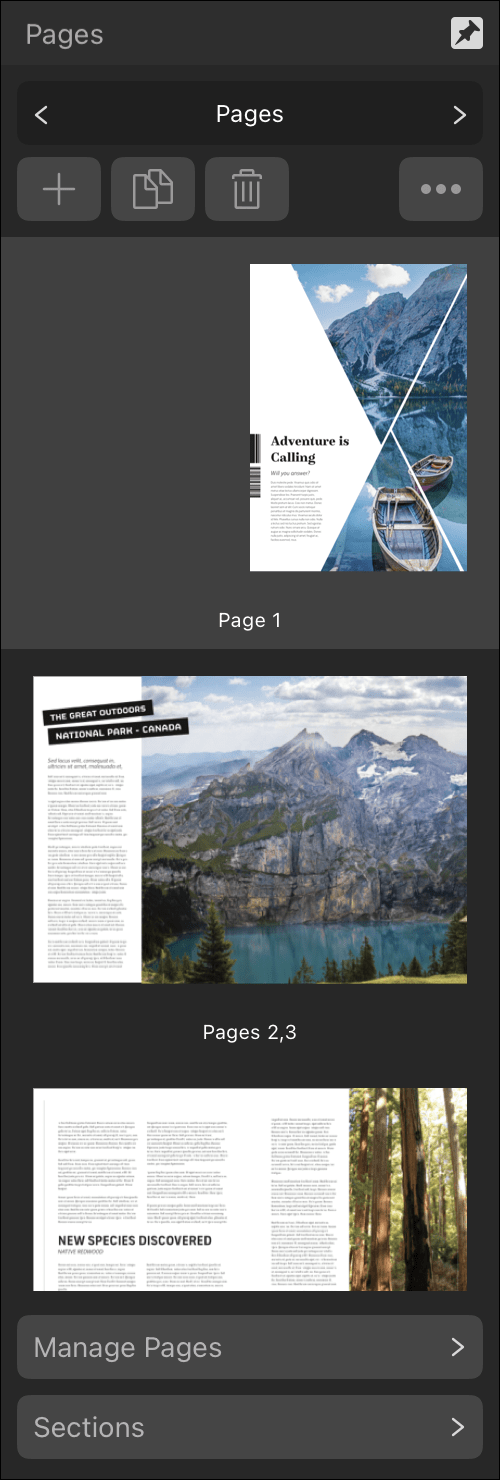
Pages can be arranged using drag and drop, which is ideal when the destination is near the pages' current position.
Moving pages further is more easily done by specifying the destination on a dialog.
Arranging pages using drag and drop
When dragging page thumbnails, a blue insertion point indicates the where the pages will be positioned if dropped. The insertion point's position also indicates whether pages will be inserted as new spreads or extend the targeted spread.
Available positions vary according to whether Reflow Pages (on the Manage Pages dialog) is enabled or disabled.
When Reflow Pages is enabled, pages will reflow starting at whichever is earliest—either the first page in the selection or the position where you drop—through to the end of your document.
When Reflow Pages is disabled, pages will not automatically reflow. This may result in 'ghost' pages.