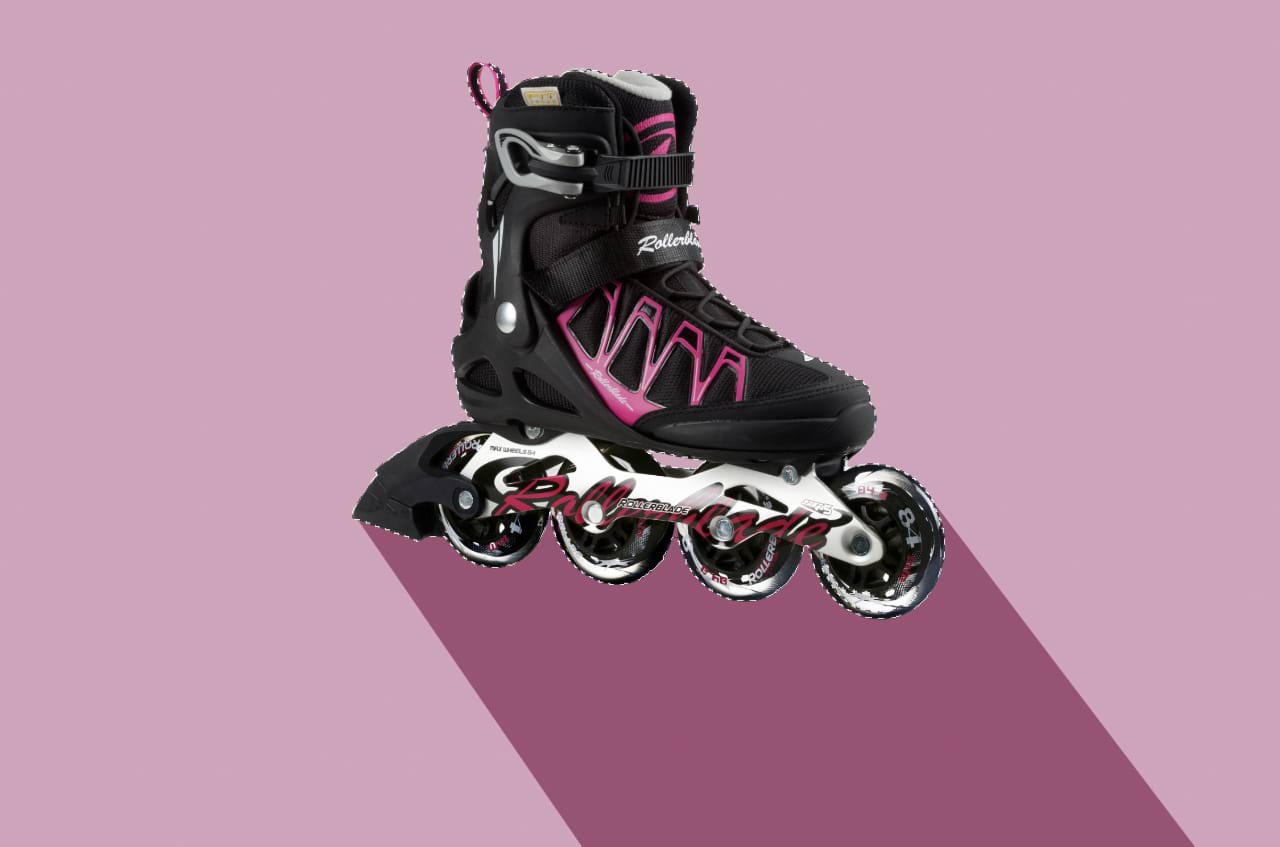
About pixel selections
A selection is created for various reasons:
- To limit editing (e.g., painting, applying fills, etc.) to within that selection area only.
- To selectively copy pixels.
- As a precursor to creating a mask layer.
- To draw areas for removal (cutout).
Selection boundaries are defined depending on whether individual pixels are included or excluded.
Once your selection has been created, you can invert it so all included pixels are excluded and vice versa.
Pixel selections and RAW layers
In Affinity, you can perform pixel selection on RAW layers, which opens up a number of options for various flexible workflows.
Note the following behaviours when working with RAW layers, with a pixel selection active and an image layer selected in the panel:
- Deleting the selection will mask the layer rather than delete it entirely from the layer stack. This aids local editing workflows, especially when targetting inverted selection areas.
- Duplicating action will create a new pixel layer with just the selected pixel data.
Additionally, the following two options are available via the More menu:
- Merge Down—merges a layer with a pixel layer below.
- Merge Visible—merges all visible layers in the panel into a new pixel layer.
Selection tools
There are several tools you can use to create pixel selections:
 Object Selection Tool (see Object Selection Tool)
 Smart Selection Brush Tool (see Painting pixel selections)
 Flood Selection Tool (see Flooding pixel selections)
 Rectangular Marquee Tool (see Marquee pixel selections)
 Elliptical Marquee Tool
 Column Marquee Tool
 Row Marquee Tool
 Freehand Selection Tool (see Drawing pixel selections)
Selection procedures
Alongside the many selection tools available, there are also a variety of procedures you can follow to create a pixel selection from:
- The most prominent subject of a layer (see Select Subject)
- Layer and composite channels (see Pixel selections from channels)
- Curves and shapes (see Pixel selections from shapes)
- Tonal or colour ranges (see Range pixel selections)
- Sampled colours (see Sampled colour pixel selections)
- Quick Masks (see Quick Mask selections)
- Previously created selections (see Creating outline selections)
About selection modes
When working with selections, you may have access to the following Modes which affect how your selection develops:
- New—cancels all current selections and creates a new selection.
- Add—adds areas to the current selection. If there is no selection in place, a new selection will be created.
- Subtract—removes areas from the current selection.
- Intersect—a new selection area is created from the overlap between the newly added selection area and the current selection.
When you switch to one of the tools listed above, its mode may vary according to the following rules:
- If pixels are selected the tool remembers its last-used mode.
- If pixels are not selected, the tool defaults to New or Add mode.
When defaulting to New/Add mode, the Smart Selection Brush Tool and the Object Selection Tool defaults to the former while other selection tools default to the latter.
 To select every pixel in the image:
 To draw a pixel selection:
 To enable/disable pixel selection display: