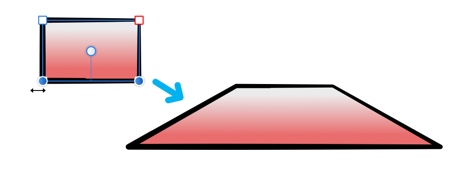
Transforming lines and shapes
Just as objects can be transformed, the nodes of lines and shapes can be transformed too.
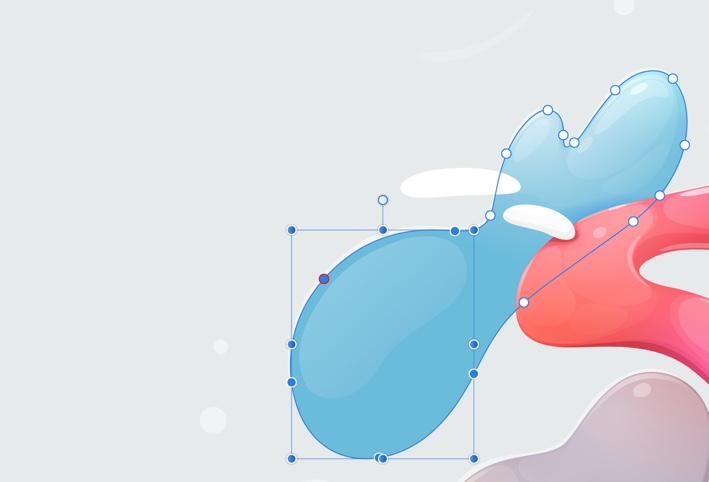
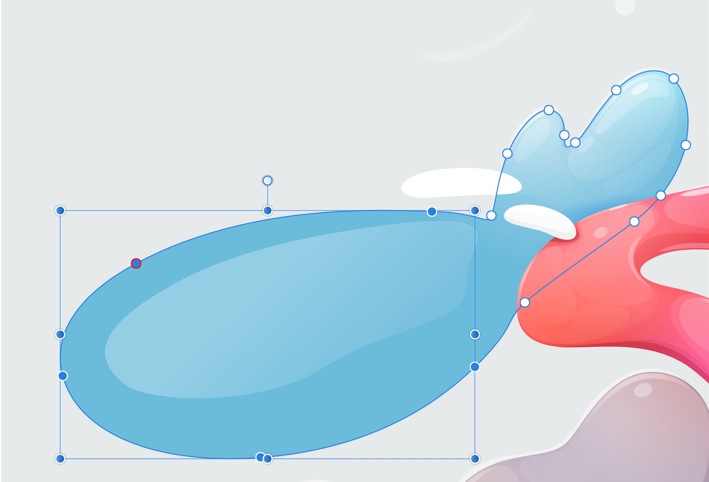
Just as objects can be transformed, the nodes of lines and shapes can be transformed too.
Node transformation works by forming a selection box around selected nodes. In doing so the box can be transformed in the same way that an object's selection box can be. As a result, the position of nodes relative to each other is altered in the transformation process which reshapes the curve or shape in different ways.

 To transform multiple nodes:
This is particularly effective on simple shapes such as rectangles.