Using multiple strokes and fills
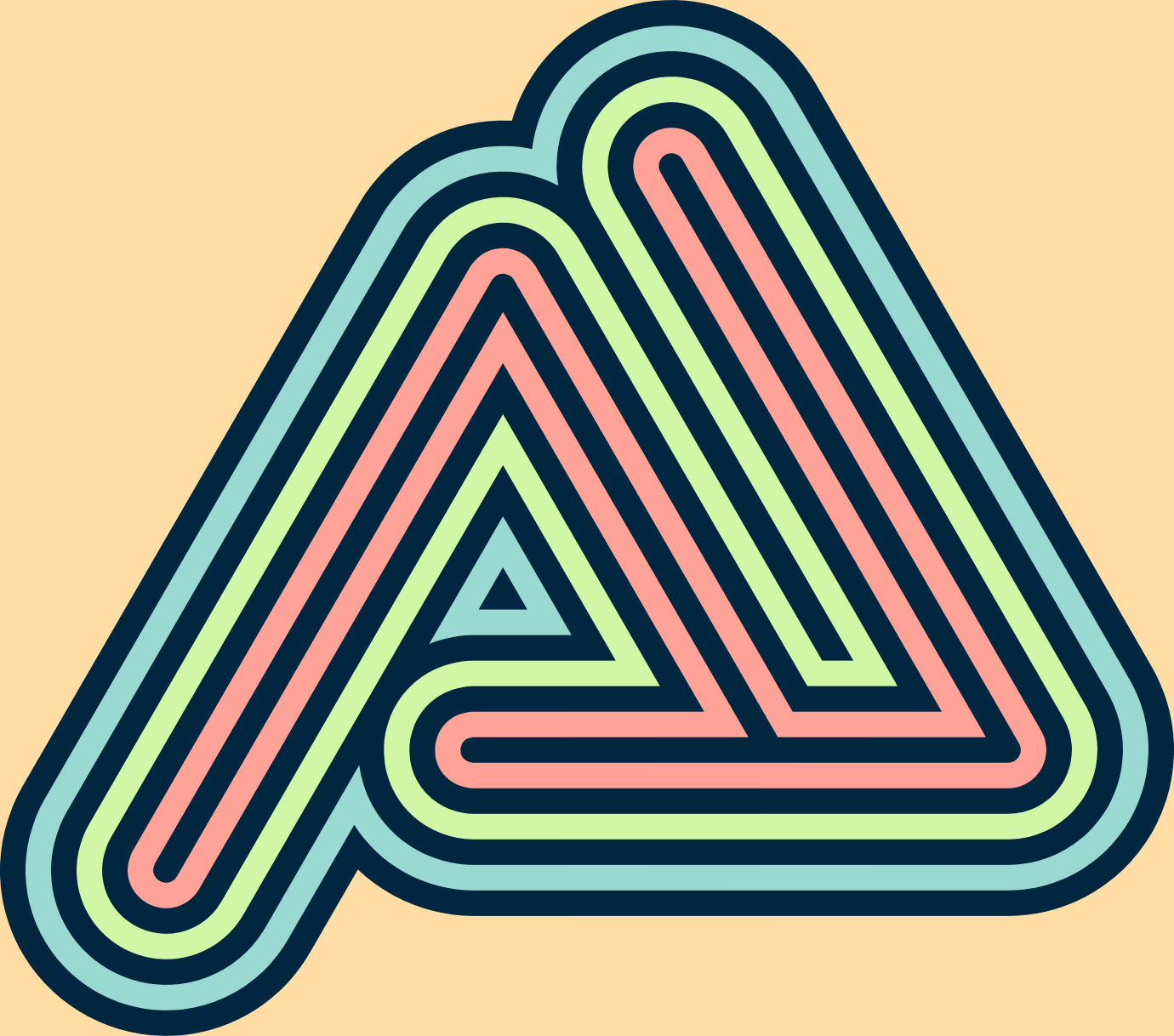
From the Appearance Studio, you can add a number of separate strokes and fills to any selected object. These can be gradients or solid colors. This combined with the ability to alter the transparency and blend mode for each stroke and fill applied, can be used to produce a range of different color interactions between upper and lower strokes and fills.
Strokes and fills listed in the Appearance Studio are arranged by z-order (like layers in a layer stack) and can be dragged and dropped to reposition them within the Studio.

 To add additional strokes or fills:
 To edit a stroke or fill: