Sampling colors
The act of color picking lets you sample colors within or outside Affinity Designer, then use them throughout your design.
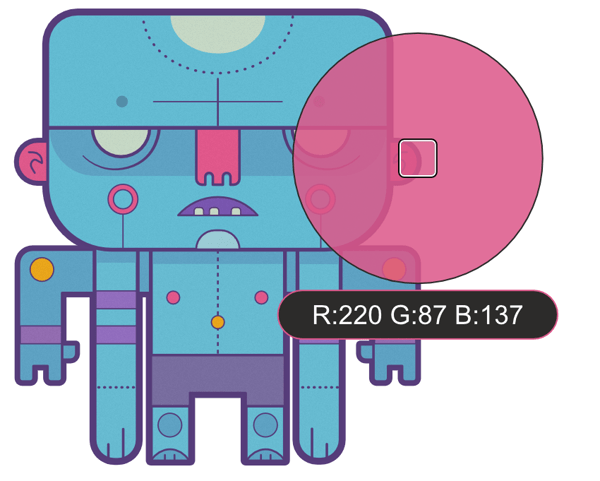
The act of color picking lets you sample colors within or outside Affinity Designer, then use them throughout your design.
Color sampling appears in two slightly different forms within Affinity Designer. It exists as a 'component' of selected panels as well as a standalone tool.
Both versions function in slightly different ways:
Regardless of which you use, a sampled color is stored and applied from the swatch next to the color picker's icon on the Color or Swatches panel.
 To use the Color Picker Tool: To use a panel's color picker: